Segments and recording
Create segments, start recording, “Just Record”, pause, save, and auto-stop.
Segments
A segment is a route with a defined start and end.
Create one via Segments:
- Enter a name (for example Home → Office)
- Choose color/icon. Optionally create the reverse direction (for example Office → Home)
- Set start and end points (search by place or pick on the map).
Plane segments can be created by searching airport codes and default to nautical units.
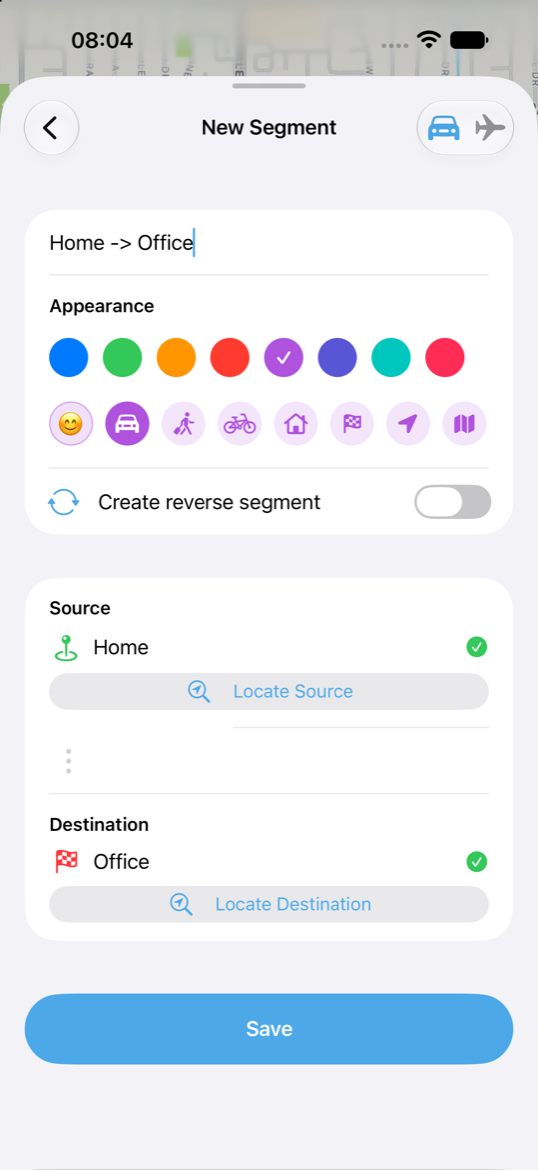
Each recording is usually tied to a segment ID so history and race-together mode compare correctly.
Start recording
- Tap the green Start button on the main toolbar.
- Pick a segment whose start is near you, or another segment (or resume a paused session).
- The session is armed until you actually move; elapsed shows
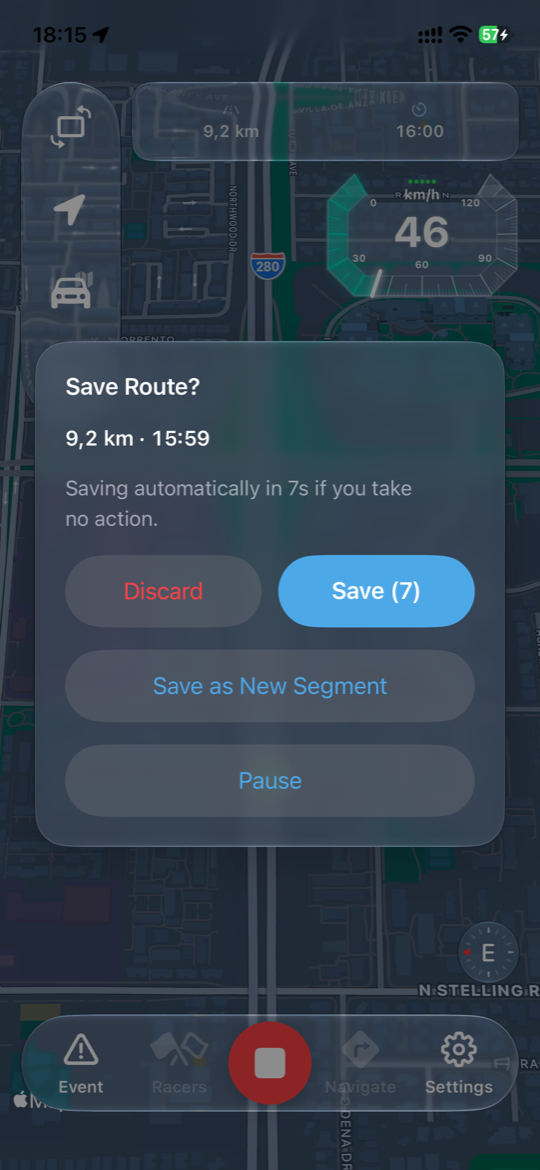
--:--until the first moving GPS signal. - The red Stop button ends, pauses, or discards. By default the run is saved after 7 seconds with no other action.
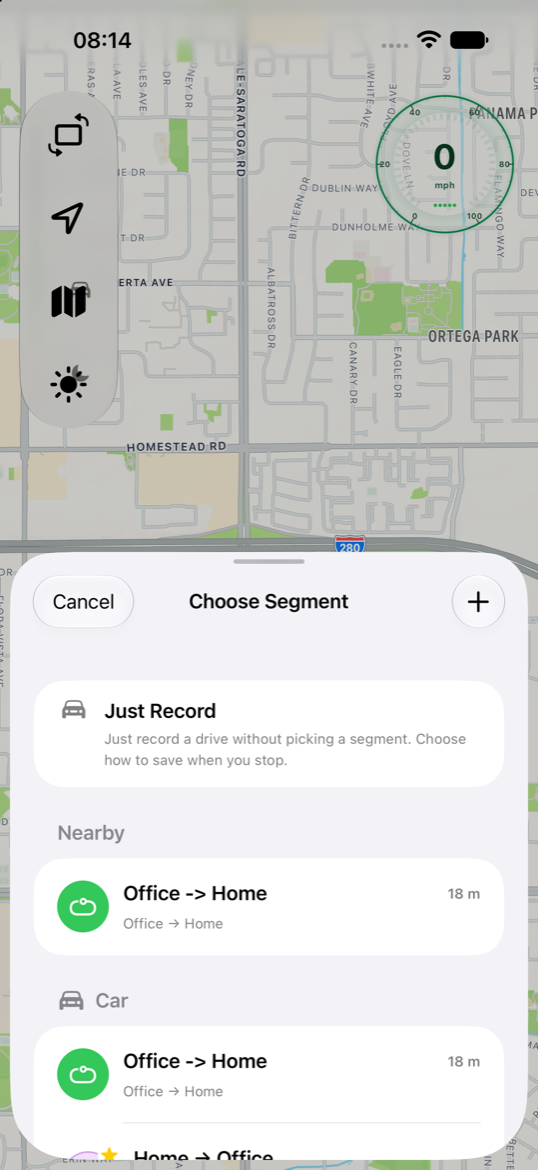
Just Record
Record without choosing a segment first — start without knowing the destination. When you finish you can keep the recording only, or quickly create a new segment (from the Just Record start point → the end point). This feature does not support “Flight Mode” — flight segments need planned start and end points.
Pause and limits
- Pause stashes the in-progress session so you can continue later. Useful for rest stops / gas stations.
- Free may auto-save unfinished runs after a time limit (45 minutes).
Auto-stop at destination
Enable in Settings: when you stop / move slowly near the destination, recording ends and saves automatically. A spinning ring on the destination pin shows progress for auto-stop.